
In this article
Last updated: · By the Televsio team
The best Firestick apps in 2026 are Downloader (to install apps that aren’t in Amazon’s store), TiviMate or IPTV Smarters Pro for IPTV, Kodi and VLC as media players, Plex, a reputable VPN, and official free TV apps such as Pluto TV, YouTube, BBC iPlayer or Tubi depending on where you live. Check your model before you install anything: the newest Fire TV Sticks run Vega OS, which only allows Appstore apps, so TiviMate, Kodi and Downloader won’t install on them.
Below you’ll find what each app does, where to get it, step-by-step instructions for installing apps from outside the store, and what to do if Amazon blocks an install or your stick slows down.
First: does your Firestick run Fire OS or Vega OS?
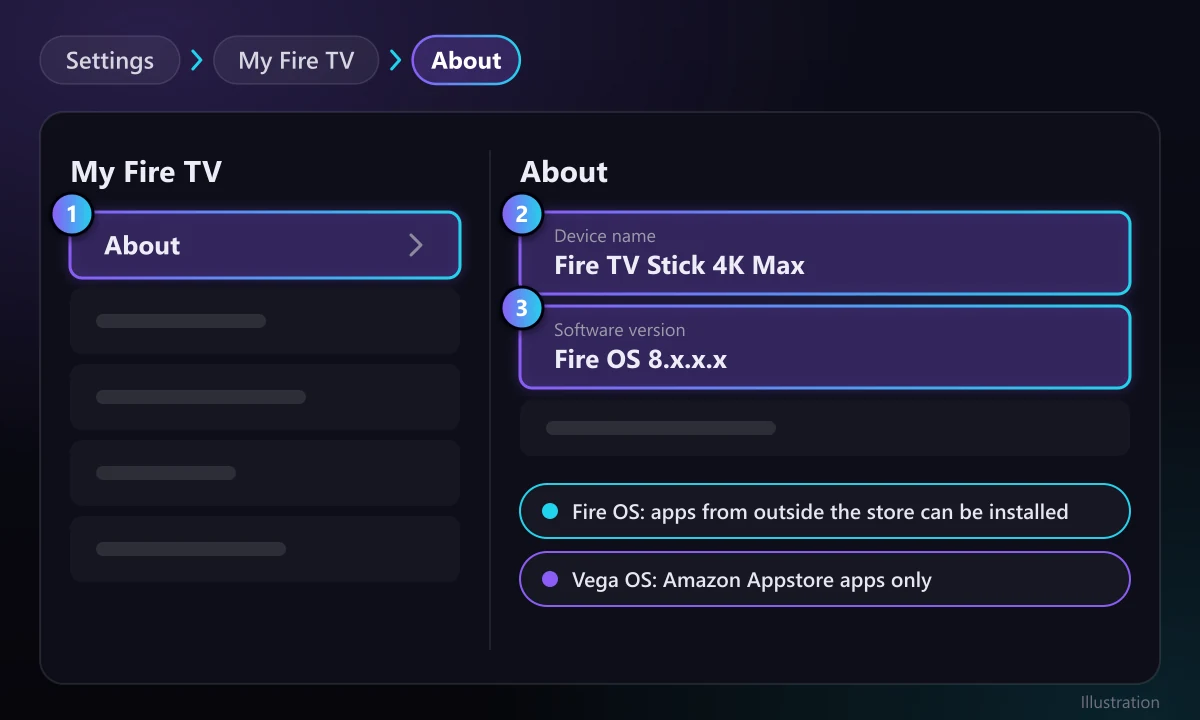
Amazon now ships two operating systems. Devices on Fire OS (based on Android) can install apps from outside the store. Devices on Vega OS (based on Linux) can only install apps from the Amazon Appstore. According to AFTVnews, these models run Vega OS:
- Fire TV Stick 4K Select (2025)
- Fire TV Stick HD, 2nd generation (2026)
- Fire TV Stick 4K, 3rd generation (2026)
The Fire TV Stick 4K Max, 4K Plus, Fire TV Cube, the 2024 Fire TV Stick HD, TVs with Fire TV built in and older models still run Fire OS and support Downloader. To check yours, go to Settings > My Fire TV > About and look at the device name and software version.
Best Firestick apps at a glance
| App | What it’s for | Where to get it | On Vega OS? | Cost |
|---|---|---|---|---|
| Downloader | Downloading and installing APK files | Amazon Appstore | No | Free |
| TiviMate | IPTV with a TV-style guide | Official site (tivimate.com) via Downloader | No | Free, optional Premium |
| IPTV Smarters Pro | Simple IPTV with live, movies and series | Developer’s official site via Downloader | No | Free |
| Kodi | Media centre, IPTV via PVR add-on | kodi.tv via Downloader | No | Free |
| VLC | Plays almost any file, stream or simple playlist | Amazon Appstore | Check the Appstore on your device | Free |
| Plex | Your own media library plus free channels | Amazon Appstore | Check the Appstore on your device | Free, optional Plex Pass |
| VPN (Proton VPN, NordVPN, Surfshark…) | Privacy on shared or public networks | Amazon Appstore | Check the Appstore on your device | Free or paid, depending on the VPN |
| Pluto TV, YouTube, BBC iPlayer, Tubi | Official free TV | Amazon Appstore | Check the Appstore on your device | Free |
| Analiti | Speed and Wi-Fi test | Amazon Appstore | Check the Appstore on your device | Free |
The apps in detail
1. Downloader: the key to apps outside the store
Downloader by AFTVnews is a browser and download manager built for a TV remote. You type an address, it downloads the APK file and offers to install it. It’s in the Amazon Appstore and is the first step for TiviMate, IPTV Smarters and Kodi. It does not work on Vega OS models.
Two things worth knowing. In March 2026 Amazon pulled Downloader from the Appstore for a couple of days over a change in the app, then restored it; if you installed it from elsewhere during that time, reinstall the Appstore version so it keeps getting updates. And watch out for lookalikes: the developer has warned about a similarly named app that tries to sign people up for a weekly subscription. The real one is “Downloader” by AFTVnews, and it’s free.
2. TiviMate: the best IPTV app for live TV
TiviMate feels the most like a real set-top box: an hour-by-hour programme guide, favourites, fast channel switching and, with Premium, multiple playlists, catch-up and recording. It works with Xtream Codes logins and M3U playlists with an EPG. It isn’t in the Amazon Appstore, so you install it with Downloader from the official site, tivimate.com. If the guide won’t load, follow our tutorial on how to update EPG on TiviMate.
3. IPTV Smarters Pro: the simpler alternative
IPTV Smarters Pro sorts live TV, movies and series into a very easy interface, which suits households where not everyone wants to learn a new app. Install it from the developer’s official site with Downloader. Torn between the two? Read our comparison TiviMate vs IPTV Smarters Pro.
Televsio customers: every paid plan also includes Telyqro Premium, an IPTV player that installs on Fire OS sticks with Downloader code 7619545 (not on Vega OS models). Our Telyqro guide explains what it does and how the included Premium works.
4. Kodi: the all-round media centre
Kodi plays local and network files, organises libraries and, with the PVR IPTV Simple Client add-on, shows IPTV playlists with a guide. It’s more technical than TiviMate but very capable. Only download it from kodi.tv: open that address in Downloader, choose Android and pick the ARMV7A (32-bit) build, which is the one for Fire TV Sticks. Skip third-party “builds” that promise free premium content; they bundle unlicensed add-ons, slow the stick down and are a common malware source.
5. VLC: the player that opens everything
VLC plays almost every video and audio format, files on your home network and streaming links. Because it’s in the Amazon Appstore, it’s one of the few ways to open a link or a short playlist on models that can’t install outside apps. For big playlists with a guide, TiviMate is far more comfortable.
6. Plex: your own streaming service
If you keep films and shows on a computer or NAS, Plex organises them with artwork and streams them to the Firestick. It also offers free ad-supported films and channels. Free in the Appstore; Plex Pass adds extra features.
7. A reputable VPN
A VPN encrypts the Firestick’s connection, which helps on public or shared networks and against some ISPs’ throttling. Proton VPN has a free plan; NordVPN, Surfshark and ExpressVPN are paid. All have Fire TV apps in the Appstore. A VPN doesn’t make unlicensed content legal; use it for privacy. If streams stutter with the VPN on, our article on the best VPN protocols for streaming explains which protocol to pick.
8. Official free TV apps
For free, licensed TV, install the official apps from the Appstore: Pluto TV for themed channels, YouTube, Tubi in the US, and BBC iPlayer, ITVX and Channel 4 in the UK. What’s available depends on your country’s Appstore.
9. Analiti: check your connection
Before blaming an app for buffering, measure the Firestick’s own connection. Analiti (Speed Test WiFi Analyzer) is in the Appstore and tests speed and Wi-Fi stability from the stick itself, which is what matters.
How to install apps from outside the store (Fire OS only)
- Install Downloader. On the home screen, go to Find > Search, type “Downloader” and select Get or Download. If search doesn’t show it, open the Appstore and look under All Categories > Utilities.
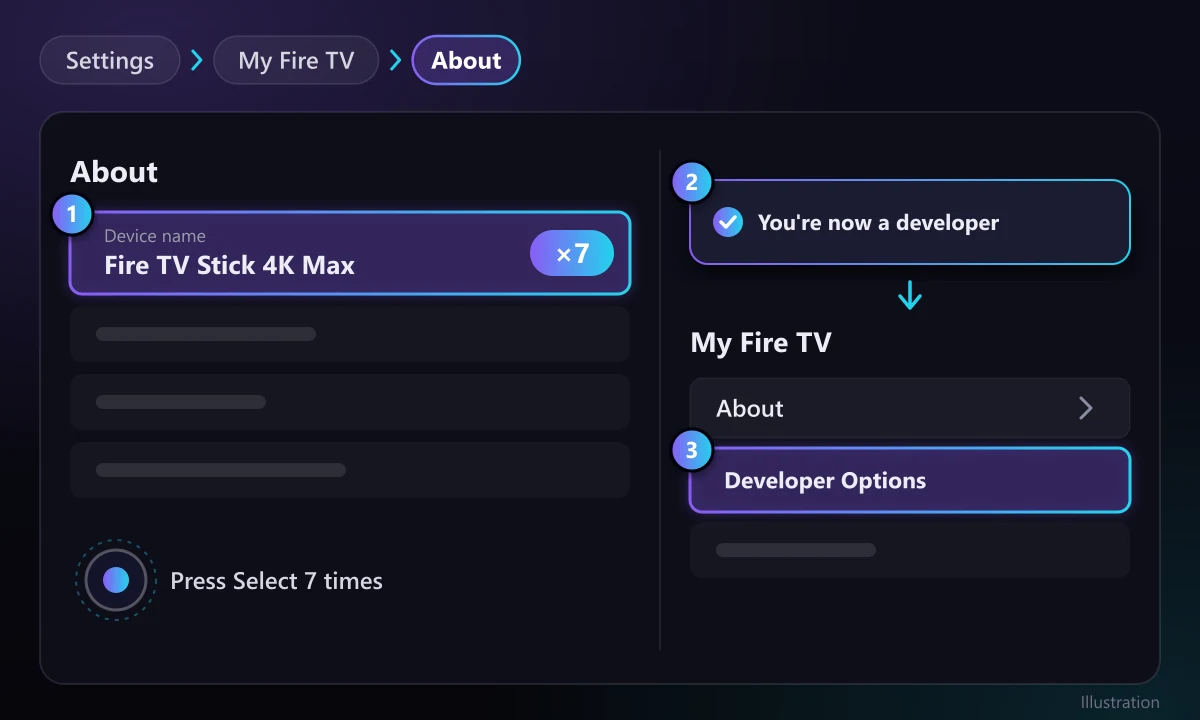
- Unlock Developer Options. Go to Settings > My Fire TV > About and press Select on the device name seven times until you see a message that you’re now a developer.

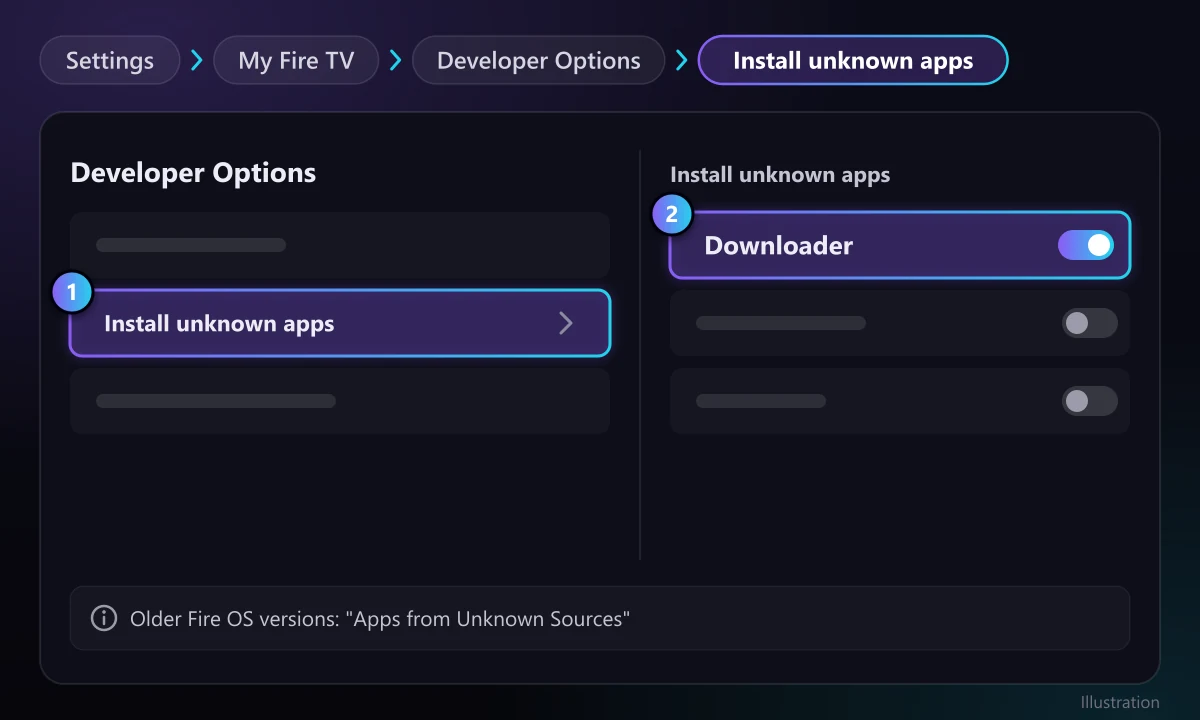
Illustration: in About, press Select seven times on the device name until the message that you're now a developer appears. - Allow Downloader to install apps. Go to Settings > My Fire TV > Developer Options > Install unknown apps and turn Downloader on. On older Fire OS versions the option is called “Apps from Unknown Sources”.
Illustration of the menu path Settings > My Fire TV > Developer Options > Install unknown apps, with Downloader turned on. - Download from the official site. Open Downloader, allow file access and enter the official address (for example tivimate.com or kodi.tv). Download the APK and select Install.
- Delete the APK. When it finishes, Downloader offers to delete the installer file. Do it; storage is tight on a stick.
For the full walkthrough, see Sideloading 101: how to install any IPTV app on Firestick.
Amazon’s app blocking: what it means for you
Since late 2025, Amazon disables apps on Fire TV that it identifies as providing access to unlicensed content, even if they were installed from outside the store. In 2026 it also started blocking their installation with an “app installation blocked” message, and its help page says it can’t make exceptions. Amazon has said that sideloading legitimate apps remains allowed.
In practice: install players from each developer’s official site, avoid “mod”, “free premium” or “cracked” versions (besides being blocked, they’re the most common route for malware), and use licensed services. Our guide to avoiding malware on unofficial streaming apps shows how to spot risky apps.
Apps we no longer recommend
- Firefox for Fire TV: Mozilla discontinued it in 2021 and it no longer gets updates. Use Amazon’s Silk Browser from the Appstore instead.
- Modified versions of paid apps: for the security and blocking reasons above.
- Third-party Kodi builds and piracy add-ons: they fill the stick with unvetted add-ons, slow it down and cause most “Kodi stopped working” problems.
Troubleshooting
Developer Options is missing
It’s hidden on recent Fire TVs. Go to Settings > My Fire TV > About and press the device name seven times. If your model runs Vega OS, the option to install outside apps doesn’t exist.
Downloader doesn’t appear under “Install unknown apps”
In August 2026 a Fire OS update hid Downloader from that list. Amazon acknowledged the bug and began rolling out a fix in September. Check for updates under Settings > My Fire TV > About > Check for Updates, restart and look again.
“App installation blocked”
Amazon has flagged that app as providing unlicensed content, and there’s no official way around it. Use one of the legitimate alternatives on this page.
Not enough storage
Delete downloaded APKs in Downloader, uninstall apps you don’t use and clear the cache of big apps under Settings > Applications > Manage Installed Applications.
Apps are slow or video buffers
Test the connection with Analiti, move the router closer or use an Ethernet adapter, and close apps running in the background. More fixes in our guide on how to fix IPTV buffering.
Our recommendation
On a Fire OS stick, start with Downloader, TiviMate, VLC, the official TV apps you use and Analiti; add Kodi or Plex if you have your own media. On a Vega OS stick, stick to what the Appstore offers. If you want an IPTV service that works with TiviMate and IPTV Smarters from day one, with the guide included, you can see the Televsio plans. To compare players in more depth, read our roundup of the best IPTV players.
Frequently asked questions
What are the best free apps for Firestick?
Downloader, VLC, Kodi, Plex, Pluto TV, YouTube and Analiti are free. TiviMate and IPTV Smarters Pro can also be used for free, though TiviMate has paid Premium features.
Can you install TiviMate on a Firestick?
Yes, on Fire OS models: install Downloader from the Appstore, allow it under Install unknown apps in Developer Options, then download TiviMate from tivimate.com. It can’t be installed on Vega OS models such as the Fire TV Stick 4K Select.
Which Firesticks can’t sideload apps?
The models running Vega OS: the Fire TV Stick 4K Select (2025), the 2nd-generation Fire TV Stick HD (2026) and the 3rd-generation Fire TV Stick 4K (2026). They only install apps from the Amazon Appstore.
Is the Downloader app legal?
Yes. Downloader is an official app in the Amazon Appstore and only downloads files. What matters is what you install with it: players like TiviMate or Kodi are legal, while apps that provide unlicensed content are not, and Amazon blocks them.
Do I need a VPN on my Firestick?
It’s not required, but it protects your privacy on public or shared networks and can help if your ISP throttles streaming. Pick a well-known VPN from the Appstore.
About this guide
Written and maintained by the Televsio team, the people behind the Televsio IPTV service. We revise this list when app availability or Amazon’s rules change. If an app on this page is no longer available, let us know through our Help Center.