In this article
Last updated: · By the Televsio team
To set up Telyqro with Televsio, install the app on your device, note the Device ID and Device Key it shows, open your Telyqro Premium link on your phone or computer and activate it for that device, then add your Televsio line as an Xtream Codes login with the server, username and password from your order. The TV guide loads by itself with an Xtream login. The whole thing takes about ten minutes, most of it the install.
Below are the steps for each device Telyqro runs on, how the Premium link works, both ways of adding your line, the TV guide settings, and what each error message means and how to fix it. For what Telyqro is and why it’s included with your plan, see Telyqro: the premium IPTV player included free with every Televsio plan.
What you need before you start
Everything comes from your Televsio order. You’ll find it in the order email and on your order page in My Account:
- Username and Password for your line.
- Server: the main server address. Some orders also list extra server addresses to try if one doesn’t respond, and a separate “Server for IPTV Smarters”, which you don’t need for Telyqro.
- M3U link: the same line as a single playlist address. Handy, but the Xtream login is the better choice in Telyqro.
- EPG (TV guide) link, when your line includes one.
- Telyqro Premium: an “Activate on your device” link that starts with
https://telyqro.com/redeem/.
You also need a supported device (see Step 1) and a phone or computer with a browser to activate the link. A free trial line has no Telyqro link; Telyqro’s own 14-day trial covers that period.
Step 1: install Telyqro
Telyqro isn’t in Google Play or the Amazon Appstore at the time of writing. You install it from telyqro.com, or with the Downloader app and the code 7619545, which always points to the newest Android version.
Amazon Fire TV Stick, Fire TV Cube and Fire TV smart TVs
- On the home screen, search for Downloader (the orange app by AFTVnews) and install it from the Amazon Appstore.
- Reveal Developer options if you don’t see them: go to Settings > My Fire TV > About (on a Fire TV smart TV, Device & Software > About) and press Select seven times on the device name.
- Go back to Developer options > Install unknown apps and switch Downloader on. Older Fire OS versions show a single switch, “Apps from Unknown Sources”, instead.
- Open Downloader, type 7619545 in the address box on the Home tab and select Go.
- Select Install, then Open. Let Downloader delete the installer file afterwards to free up space.
The newest Fire TV sticks that run Vega OS (for example the Fire TV Stick 4K Select) can’t install apps from outside the Appstore, so Telyqro can’t be installed on them. To check, look under Settings > My Fire TV > About: a “Fire OS” version is fine. Our list of the best Firestick apps explains the difference.
Android TV and Google TV
- Install Downloader from Google Play on the TV.
- Allow Downloader to install unknown apps when Android asks (or in the TV’s security or app settings).
- Enter code 7619545 in Downloader and install.
Android phones and tablets
- Open telyqro.com/download on the phone and download the Android file.
- Open it. When Android asks, allow your browser to install apps, then select Install.
Windows 10 and 11
- Download the installer from telyqro.com/download and run it.
- If Windows SmartScreen appears, choose More info, then Run anyway.
Linux
- Download the AppImage for x64 desktops from telyqro.com/download.
- Make it executable (
chmod +xin a terminal, or Properties > Allow executing) and run it.
iPhone, iPad, Mac, Samsung and LG TVs
Telyqro lists these as coming soon, so there’s nothing to install yet. Your Televsio login works in other players on those devices; keep your Premium link, which stays valid for 180 days.
Step 2: find the Device ID and Device Key
Open Telyqro once. It registers the device and starts its free 14-day trial by itself. The Home screen shows a subscription card with the Device ID (it looks like a MAC address, for example AB:CD:12:…) and the Device Key. You can also find both under Settings > Device, and on the activation screen, where a QR code opens telyqro.com on your phone with the Device ID already filled in.
Write both down or keep the screen open. They are how you tell telyqro.com which device should get the Premium months.
Step 3: activate your Telyqro Premium link
- On your phone or computer, open the Activate on your device link from your order email or your order page. Opening the link doesn’t use it up; only the final confirmation does.
- The page shows the offer: how many months of Telyqro Premium the link carries and the date you have to redeem it by.
- Sign in to the device with the Device ID and Device Key from Step 2. The page keeps your link while you sign in, so you don’t need to open it again.
- Check the device shown (“Activating on device …”). If it’s the wrong one, choose Sign out and sign in with the right one.
- Select Activate N months on this device.
- The confirmation shows the date Telyqro Premium runs until. The app picks it up within about 30 seconds on its activation screen, or immediately if you close and reopen it.
Good to know before you confirm:
- The months start when you activate. Days left in the free trial aren’t added on top, so you can use the trial first and activate before it ends, as long as you’re within the 180 days.
- If the device already has Premium time, the new months are added after it ends.
- Each line in your order has its own link. With several lines, activate each link on a different device.
- The redeem page is in English.
Step 4: add your Televsio line
Option A: Xtream Codes login (recommended)
The Xtream login gives you live TV, films and series in separate sections, catch-up where the channel has it, and the TV guide without any extra setup.
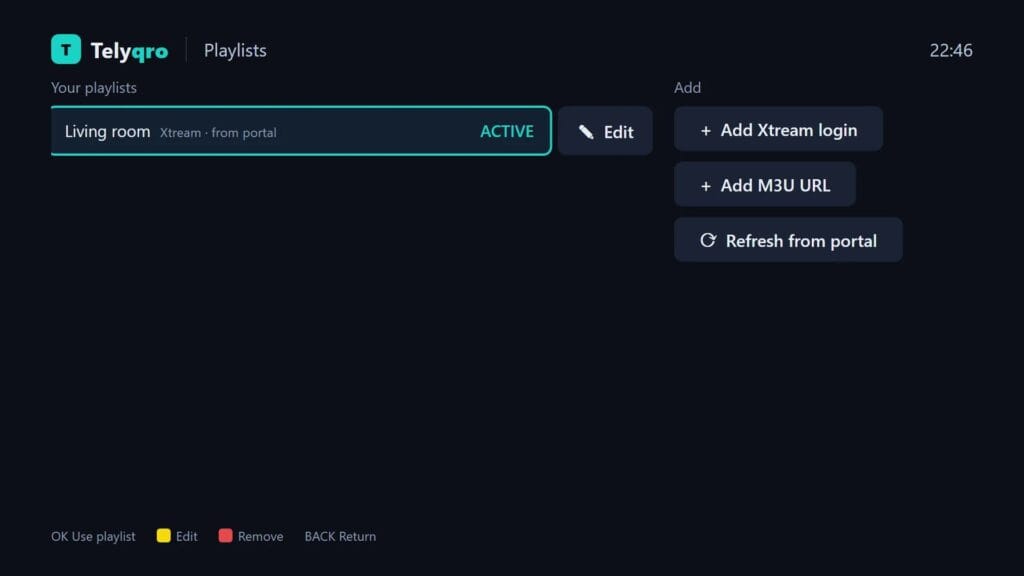
- Open Playlists from the side menu and select Add playlist.
- Choose Xtream Codes.
- Enter the Server URL exactly as the “Server” in your order, including
http://and the port number if there is one. Use the main server, not the one marked for IPTV Smarters. - Enter your Username and Password. Both are case-sensitive.
- Give the playlist a name and save. Telyqro imports channels, films and series in the background, so you can start browsing while it works.
Option B: M3U link
Choose M3U URL and paste the full M3U link from your order. Because it is a get.php link, Telyqro recognises it as an Xtream server and offers to import it in Xtream mode. Accept: it loads faster and includes series.
Option C: add it from your phone on telyqro.com
Typing a long password with a remote is slow. Instead, open telyqro.com on your phone or computer, choose Sign in, enter the Device ID and Device Key, and add the playlist there. It appears on the TV by itself; while the Playlists screen is open, Telyqro checks for new playlists every 15 seconds.
Not sure which login type to use? Our explainer on Xtream Codes vs M3U covers the difference.
Step 5: load the TV guide (EPG)
With an Xtream login there is nothing to do: Telyqro fetches the guide from the same server. The first download runs in the background; while it does, the guide screen says Loading the TV guide…. Within a few minutes, channel rows show what’s on now and next, and the full grid opens from TV Guide.
With an M3U link, Telyqro uses the guide address inside the playlist if there is one. If the guide stays empty:
- Open Playlists, select your playlist and choose Edit.
- Paste the EPG (TV guide) link from your order into EPG URL (optional).
- Save. Telyqro reloads the playlist and downloads the guide.
The guide refreshes every 12 hours by default. To change that, go to Settings > Auto-refresh > Update the TV guide and pick every 6 hours, every 12 hours or daily. If programmes appear at the wrong times, turn on automatic date, time and time zone on the device itself.
Troubleshooting
Problems with the Premium link
| Message on telyqro.com | What it means | What to do |
|---|---|---|
| “This link was already used on another device.” | The link was activated on a different Device ID. Each link works once. | If you activated it yourself on another device, Premium is there. If you didn’t, contact us through the Help Center with your order number. |
| “This link has expired.” | More than 180 days have passed since the link was issued. | Contact us through the Help Center with your order number. |
| “This link isn’t valid.” | Usually only part of the link was copied, or a character got lost. | Open the link straight from your order page in My Account, or copy the whole address from the email. |
| “This device already has lifetime Premium.” | The device already has Telyqro for good. The link has not been used. | Sign out and activate the link on another device. |
| “This device is blocked.” | Telyqro has blocked that device. | Use another device, and contact support if you think it’s a mistake. |
| “Premium links can’t be redeemed right now.” | Activation is temporarily unavailable. | Try again later. Your link stays valid. |
I activated the link on the wrong device
Telyqro lets you move a plan, with all its remaining time, to another device on telyqro.com. Open Telyqro once on the new device, sign in on telyqro.com with the old device’s Device ID and Device Key, choose Move to another device and enter the new device’s ID and key. A plan can move once a day, and only to a device that has no plan of its own.
The app still says the trial or plan has ended
Leave it on the activation screen for 30 seconds, or close and reopen Telyqro. If nothing changes, compare the Device ID on the screen with the one shown on the confirmation page; if they differ, the months went to another device (see above).
“Your TV provider didn’t accept the login”
Telyqro reached the server, but the login was refused. Check the username and password character by character (capital letters count), and make sure the server address is the one from your order. Also check the expiry date on your order page: an expired line is refused too.
“Can’t reach your TV provider”
Telyqro couldn’t connect to the server. Check that the device is online, then edit the playlist and try one of the other server addresses in your order, if it lists more than one. If channels connect but keep stopping, see how to fix IPTV buffering.
The guide says “No TV guide for this playlist yet”
Telyqro found no guide address or couldn’t download it. With an M3U link, add the EPG link as in Step 5, or switch to the Xtream login. Our article on the best EPG sources for IPTV explains how guide files work.
I can’t find the link at all
Check your spam or promotions folder, then open the order page in My Account, which shows every line with its details. Remember that free trial lines don’t include a link. If a paid order has no link, contact us through the Help Center.
Frequently asked questions
Where do I find my Telyqro Premium link?
In your Televsio order email, next to the line’s username and password, as “Activate on your device”, and on your order page in My Account. It starts with https://telyqro.com/redeem/.
Does opening the link use it up?
No. Opening the link only shows the offer. The link is used when you sign in with a Device ID and Device Key and confirm with “Activate N months on this device”.
Which server address do I enter in Telyqro?
The main “Server” from your order, exactly as written, with your username and password. If your order also lists a server for IPTV Smarters, that one isn’t needed in Telyqro.
Do I need to add an EPG URL in Telyqro?
Not with an Xtream Codes login: Telyqro loads the guide from the same server automatically. With an M3U link, add the EPG link from your order under Playlists > Edit > EPG URL (optional) if the guide stays empty.
Can I move Telyqro Premium to a new TV later?
Yes. Telyqro lets you move a plan with its remaining time to another device on telyqro.com, once a day, as long as the new device has opened the app once and has no plan of its own.
My link has expired. What can I do?
Links can be redeemed for 180 days. If yours has passed that date, contact us through the Help Center with your order number.
About this guide
Written and maintained by the Televsio team, the people behind the Televsio IPTV service. The menu names and messages come from the current Telyqro release and its documentation, and we update this guide when they change. If a step doesn’t match your screen, tell us through our Help Center and we’ll correct it.