In this article
Last updated: · By the Televsio team
To update the EPG on TiviMate, open Settings, choose EPG and select Update EPG. TiviMate downloads the guide again from every EPG source attached to your playlists, which usually takes from a few seconds to a few minutes depending on the file size. If the guide is still empty or out of date after that, the problem is almost always the EPG URL, the channel matching or the time shift, and each has a fix below.
This guide covers the manual update, automatic updates, adding or replacing an EPG URL, and a troubleshooting section for the problems people actually run into: “No information” on channels, guides stuck on old data, programmes shifted by an hour or more, and guides that only cover part of your channel list.
A note on menu names: TiviMate’s developer renames or moves items now and then. The paths below match current versions on Android TV and Fire TV. If a label on your screen is slightly different, pick the closest match; the order of the steps stays the same.
How TiviMate gets its EPG
TiviMate does not create programme data itself. It reads an XMLTV file (plain .xml or compressed .xml.gz) and matches the entries in that file to the channels in your playlist. Where that file comes from depends on how you added the playlist:
- Xtream Codes login (server address, username, password): TiviMate adds the provider’s guide automatically. You normally don’t need to enter anything.
- M3U playlist URL: if the first line of the playlist contains a guide address (the
url-tvgorx-tvg-urltag), TiviMate picks it up. If not, you have to add the EPG URL yourself. - Extra EPG sources: you can add more XMLTV URLs on top of the provider’s guide, for example a free regional guide to fill gaps.
Matching happens through the tvg-id of each channel in the playlist, which has to be identical to the channel id inside the XMLTV file. When the two don’t match, that channel shows “No information” even though the guide downloaded fine. If you’re unsure which login type you use, our explainer on Xtream Codes vs M3U covers the difference.
How to update the EPG on TiviMate manually
- On the TiviMate home screen, press Left or Back on the remote to open the side menu and select the Settings (gear) icon.
- Open EPG.
- Select Update EPG.
- Wait until the progress indicator finishes. Don’t close the app while it runs; on a slow stick a large guide can take several minutes.
- Go back to the TV guide and scroll a few channels to check that today’s and tomorrow’s programmes appear.
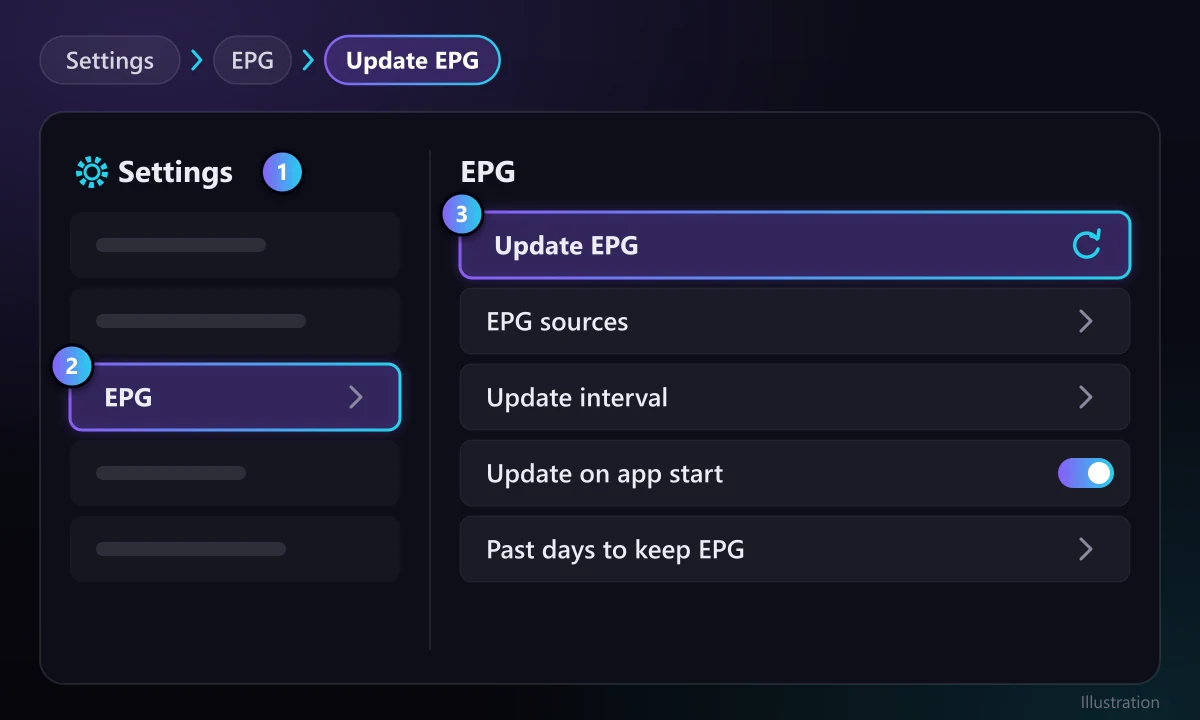
A manual update is the right move after you change an EPG URL, after your provider tells you they fixed their guide, or when the guide ends earlier than it should (for example it only shows programmes until tonight).
Set TiviMate to update the EPG automatically
You shouldn’t have to refresh by hand every day. In Settings > EPG you’ll find the options that control automatic updates:
- Update interval: how often TiviMate fetches the guide in the background. Once or twice a day is enough for most guides, since XMLTV files are usually rebuilt daily. Very short intervals add load on weak devices without giving you fresher data.
- Update on app start: refreshes the guide whenever you open TiviMate. Handy if the device is often unplugged; switch it off if the app becomes slow to start.
- Past days to keep EPG (or similar): how much old guide data to keep. Keep this low on low-memory devices unless you use catch-up and want to browse earlier programmes.
If your device sleeps or loses power overnight, background updates can’t run. In that case “Update on app start” is the more reliable option.
How to add or change the EPG URL in TiviMate
Do this when your M3U playlist didn’t bring a guide with it, when your provider gives you a new guide address, or when you want to add a second guide to fill missing channels.
- Go to Settings > EPG > EPG sources.
- Select Add EPG source to add a new URL, or select an existing source to edit or remove it.
- Type or paste the full XMLTV address. Provider guides on Xtream-based services usually look like
http://server:port/xmltv.php?username=XXX&password=YYY, with your own server and login. - Confirm, then return to Settings > EPG and select Update EPG.
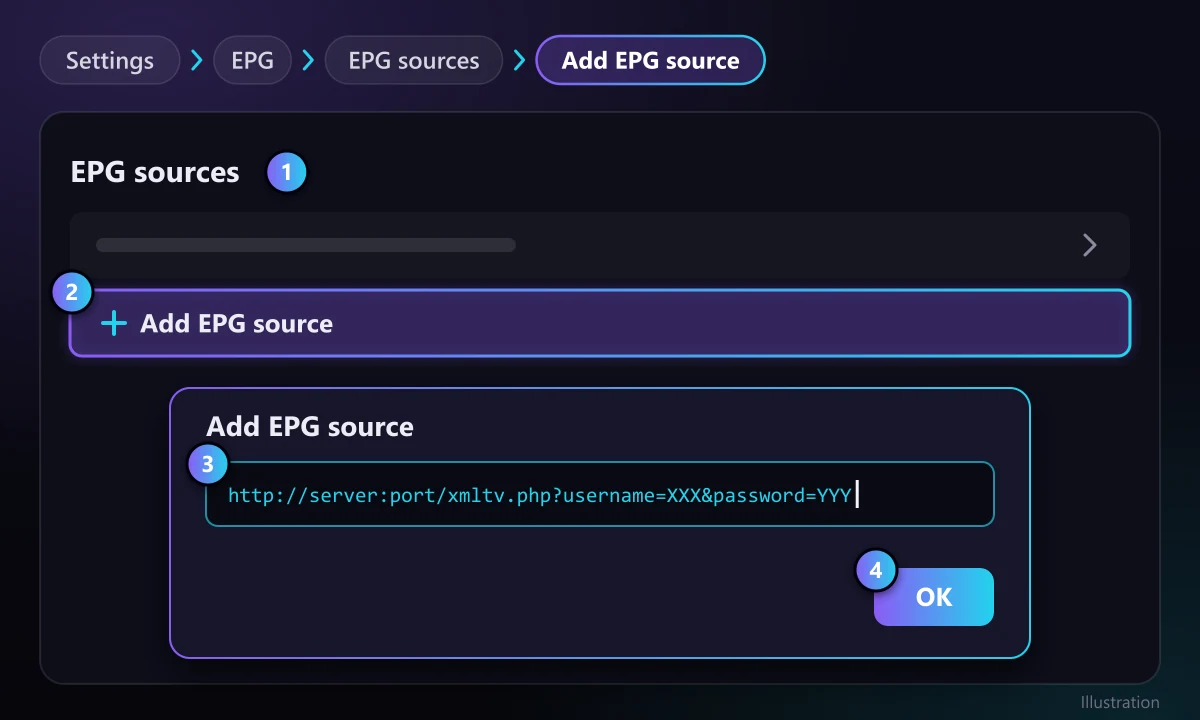
Typing long URLs with a remote is error-prone. Two easier options: use a URL shortener on your phone and type the short link, or use the Amazon Fire TV app or Google TV app on your phone as a keyboard. One wrong character in the username or password and the guide silently fails.
Want to add a free regional guide as a backup? Our comparison of the best EPG sources for IPTV explains which XMLTV guides are still maintained and how to check that a guide file is alive before you add it.
Troubleshooting: when the TiviMate EPG is not updating
Work through these in order. Most problems are solved by the first three.
1. The guide is empty or shows “No information” everywhere
- Run Settings > EPG > Update EPG and wait for it to finish.
- Open Settings > EPG > EPG sources and check that a source exists. If the list is empty and you use an M3U playlist, add your provider’s EPG URL as described above.
- Open the EPG URL in a browser on your phone or computer. If it downloads a file, the URL works. If you get an error page or a file of only a few bytes, the problem is on the source side, not in TiviMate.
2. Only some channels show “No information”
This is a matching problem, not a download problem. The channel’s tvg-id doesn’t exist in the guide file, or the guide simply doesn’t cover that channel. Fixes:
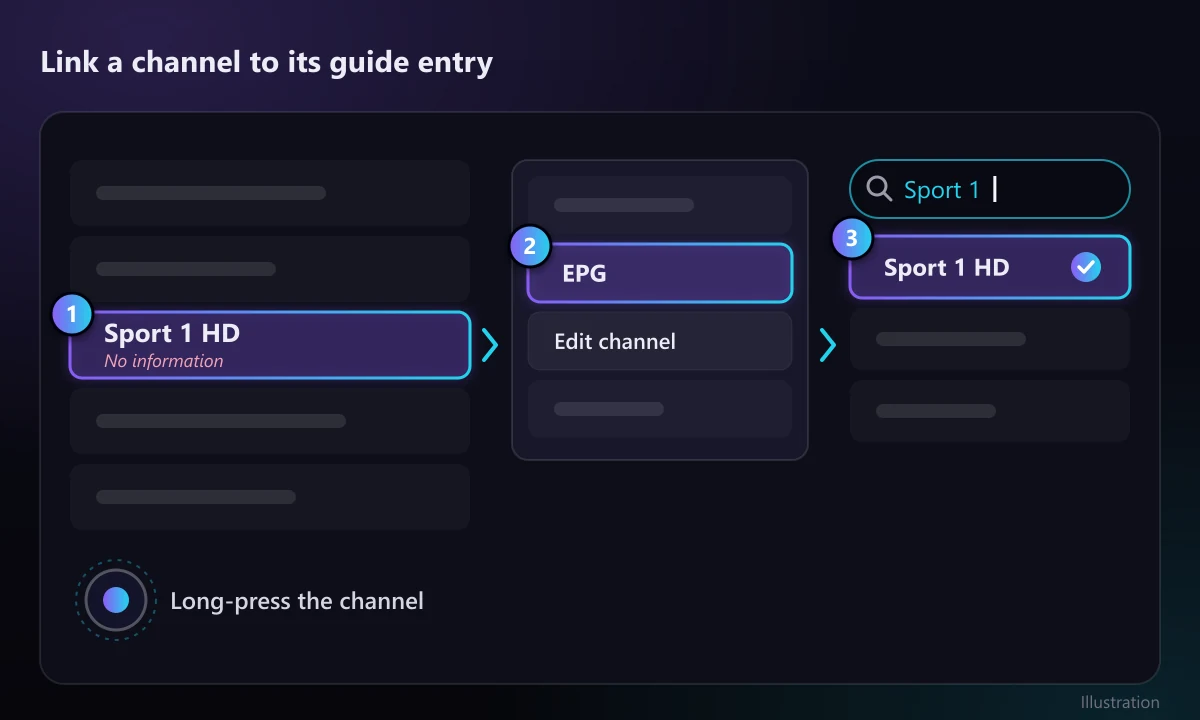
- Long-press the channel in the channel list and open its options. Recent versions let you link the channel to a different guide entry manually (look for the EPG or “edit channel” option and search for the matching channel name).
- Add a second EPG source that covers the missing channels. TiviMate checks all sources when matching.
- Ask your provider. A reliable service fixes mismatched ids on its side so you don’t have to map channels by hand.
3. The guide stops after today or shows old programmes
- Run a manual update. If it ends without new data, the source file may be out of date. Check the file’s date on the source website, if it shows one.
- Check the update interval in Settings > EPG and make sure the device isn’t being cut off from power overnight.
- Free guides sometimes cover only two to four days ahead. That’s a limit of the source, not a fault.
4. Programmes are shifted by one or more hours
When the right shows appear at the wrong times, it’s a time zone issue.
- First check the device clock. On Android TV / Google TV: Settings > System > Date & time (on some models Device Preferences > Date & time) and turn on automatic time and the correct time zone. On Fire TV: Settings > Preferences > Time Zone.
- Restart TiviMate and look at the guide again.
- If it’s still off, open Settings > EPG > EPG sources, select the guide and set its time shift (some versions call it “Shift EPG time”) in whole hours, for example −1 or +1, until the current programme matches what’s actually on.
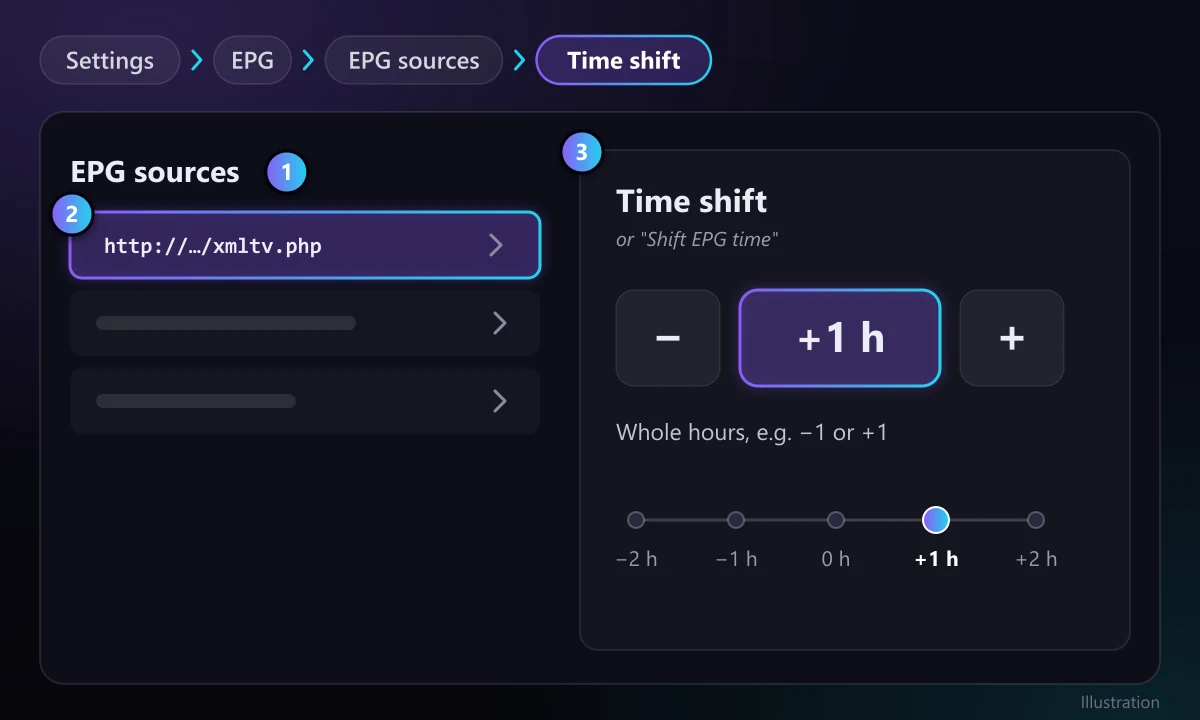
If only one channel is shifted, set the shift for that channel in its channel options instead of shifting the whole guide. Remember that some regions change clocks in spring and autumn; a manual shift that was right in summer can be an hour off in winter.
5. You changed the EPG URL but TiviMate still shows the old guide
- Make sure you edited the right source in EPG sources and didn’t add a second one next to the old URL. Remove the old one.
- Run Update EPG again.
- If old data stays, clear the app cache (not the data): on Android TV, Settings > Apps > TiviMate > Clear cache; on Fire TV, Settings > Applications > Manage Installed Applications > TiviMate > Clear cache. Then update the EPG.
Avoid “Clear data” unless you have a backup: it wipes your playlists, favourites and settings. TiviMate Premium users can make a backup first in the app’s settings.
6. Updating takes forever or the app freezes
- Remove EPG sources you don’t need. Every extra guide adds download and processing time.
- Prefer a country-specific guide over a worldwide “all channels” file, which can be very large.
- Use the compressed
.xml.gzversion when a source offers it. - Reduce the number of past days kept.
- Check your connection. If streams also buffer, see our guide on fixing IPTV buffering.
Quick reference: symptom, cause and fix
| What you see | Most likely cause | Fix |
|---|---|---|
| No guide at all | No EPG source, or the URL is wrong | Add or correct the URL in Settings > EPG > EPG sources, then Update EPG |
| “No information” on some channels | Channel ids don’t match the guide | Link the channel manually or add a second guide |
| Guide ends today | Update didn’t run or the source is stale | Update EPG; check interval and the source’s file date |
| Times are off by hours | Device time zone or guide time zone | Fix device time zone, then set the time shift |
| Old guide after changing URL | Old source still active or cached | Remove old source, clear cache, Update EPG |
| Very slow updates | Too many or too large guide files | Use one country file, .xml.gz, fewer past days |
When the problem is the provider, not TiviMate
If the URL opens fine, the update completes and channels still show nothing, the guide data itself is the weak point. Signs of that: the guide file is very small, hasn’t changed for days, or covers only a handful of your channels. No setting in TiviMate can fix missing data. Your options are to add a better XMLTV source or to use a provider that maintains its own guide and matches its channel ids properly.
Televsio lines use an Xtream Codes login, so TiviMate pulls the guide in automatically. If you’re comparing players before you choose, read TiviMate vs IPTV Smarters Pro, and if you want a service with the guide already set up, you can see the Televsio plans.
Trying another player? Every paid Televsio plan also includes Telyqro Premium for the length of the plan, at no extra cost. Telyqro loads the guide from an Xtream login automatically and refreshes it every 12 hours by default. Read what Telyqro does and how the included Premium works.
Frequently asked questions
Why is my TiviMate EPG not updating?
The most common causes are a wrong or expired EPG URL, an update that never ran because the device was asleep or off, and a source file that stopped being refreshed. Run Settings > EPG > Update EPG, check the URL in a browser, and look at the file date on the source’s site.
How often does TiviMate update the EPG?
As often as you set in Settings > EPG > Update interval, plus every app start if “Update on app start” is on. Most XMLTV guides are rebuilt once a day, so updating once or twice a day is enough.
How do I add an EPG URL to TiviMate?
Go to Settings > EPG > EPG sources > Add EPG source, paste the XMLTV address (.xml or .xml.gz), confirm, and then run Update EPG. Xtream Codes logins usually add the provider’s guide automatically.
How do I fix the EPG time offset in TiviMate?
First set the correct time zone on the device itself. If programmes are still shifted, open Settings > EPG > EPG sources, select the guide and adjust its time shift in whole hours until the current programme matches the broadcast.
Does the free version of TiviMate support EPG?
Yes. The guide, manual updates and EPG sources work in the free version. Premium adds features such as multiple playlists, catch-up and recording, but you don’t need it to get a working TV guide.
Why do some channels show “No information” while others work?
Those channels’ tvg-id values don’t match any entry in the guide file, or the guide doesn’t cover them. Link the channel to the right guide entry in its channel options, or add a second EPG source that includes those channels.
About this guide
Written and maintained by the Televsio team, the people behind the Televsio IPTV service. We update this page when TiviMate’s menus change. If a step doesn’t match what you see on screen, tell us through our Help Center and we’ll correct it.